When One Studio Is No Longer Enough
Growth is the ambition of every dance school owner, but it brings operational complexity that can quickly overwhelm the systems that worked when you had a single studio and twenty pupils. The moment you expand to two studios, whether in the same building or across different sites, your scheduling challenge does not double. It multiplies, because you now have cross-studio dependencies for teachers, pupils, equipment, and time.
Many schools reach this tipping point and try to manage it by extending their existing spreadsheet or paper timetable. This works for a while, but the first time a teacher is accidentally scheduled in two studios at the same time, or a class is booked into a room that does not have the right flooring, the limitations become painfully clear.
This guide focuses on the practical tools and techniques for scheduling across multiple studios, with particular attention to the visual and systematic approaches that prevent the most common errors.
Visual Drag-and-Drop Timetabling
Why Visual Scheduling Matters
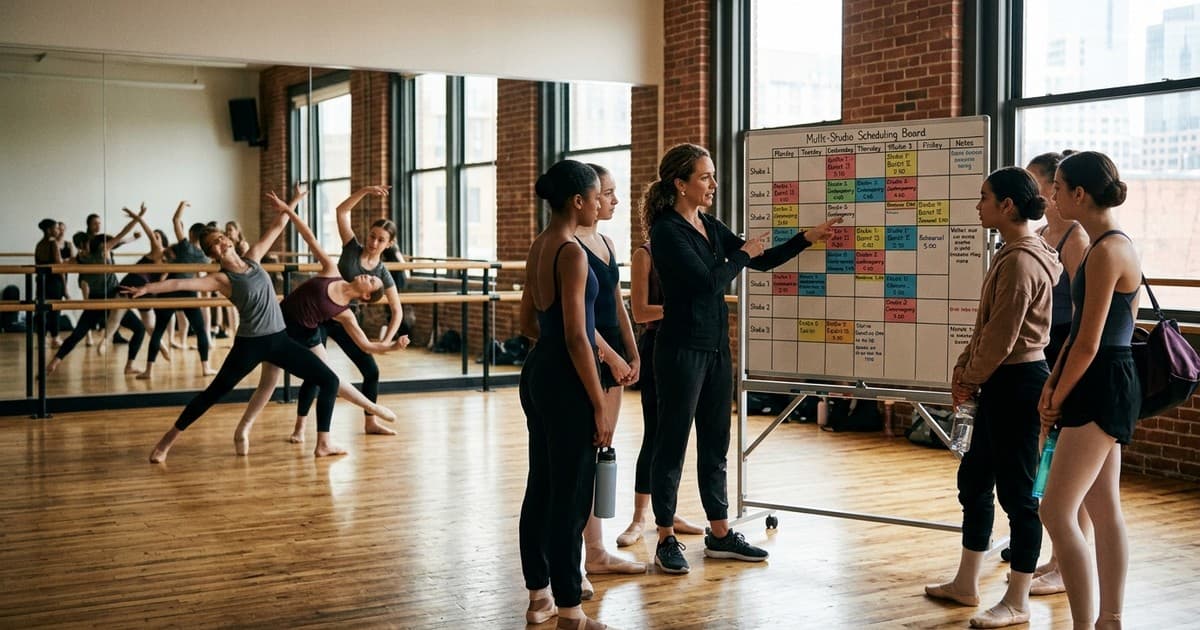
A timetable is a spatial problem. You are fitting classes into rooms across time slots, and the relationships between those elements are easier to see than to read in a list. Visual scheduling, where you can see all your rooms as columns, time as rows, and classes as coloured blocks that you can drag between slots, transforms timetabling from a tedious data-entry task into an intuitive design exercise.
AMES provides a drag-and-drop timetable view where each studio appears as a column and time runs vertically. Classes appear as blocks that you can drag to different slots, resize to adjust duration, and colour-code by discipline. When you move a class, the system immediately checks for conflicts and flags any issues. This immediate feedback loop means you can experiment with arrangements quickly, trying different configurations until you find one that works.
Building Your Initial Layout
Start with your fixed commitments: exam classes that must happen at specific times, teacher availability constraints, and venue hire windows for any external spaces. Place these on your timetable first, as immovable blocks. Then add your high-demand classes, those with waiting lists or that serve your largest pupil groups. These should get the best time slots (typically 4:00 to 6:00pm on weekdays for children's classes). Finally, fill in with smaller or more flexible classes, using the remaining slots.
Room Tagging and Discipline Requirements
Tagging Your Studios
Every studio has characteristics that make it suitable for some disciplines and unsuitable for others. Tag each room with its features: sprung floor (essential for ballet, contemporary, and any jumping-heavy work), barres (needed for ballet), mirrors (beneficial for most styles), tap-suitable floor (hard surface that produces clean sounds), tumble track or crash mats (for acrobatics), sound system quality (important for street dance and musical theatre), and maximum capacity.
Once your rooms are tagged, your scheduling system can automatically filter which classes can go where. If you try to schedule a RAD ballet class in a room without a sprung floor or barres, the system flags the mismatch. This prevents mistakes that are easy to make when you are managing four or five studios and dozens of classes.
Discipline Colour-Coding
Assign a consistent colour to each discipline and use it everywhere: on your timetable, in communications to parents, on your website, and in your internal planning documents. A common scheme is pink for ballet, blue for tap, green for modern, purple for street dance, orange for musical theatre, and yellow for acrobatics. When you look at a colour-coded timetable, you can instantly see the balance of disciplines across your studios and identify gaps or overloads. If one studio is entirely pink on Tuesday evening, you know all your Tuesday ballet is concentrated in one room, which may or may not be intentional.
Clash Detection and Conflict Resolution
Types of Scheduling Clashes
Multi-studio scheduling introduces several types of clashes that do not exist in a single-studio environment. Teacher clashes occur when the same teacher is assigned to classes in different studios at overlapping times. Room clashes occur when two classes are booked into the same studio at the same time. Pupil clashes occur when a pupil who is enrolled in multiple classes has those classes scheduled simultaneously. Feature clashes occur when a class is scheduled in a room that lacks a required feature.
Automated clash detection catches all of these. When you place or move a class on your timetable, the system checks against all known constraints and flags any conflicts. This is particularly valuable when you are making mid-term changes. Moving one class to accommodate a new teacher's availability can cascade through your timetable, and without automated detection, you may not notice the knock-on effects until a parent or teacher points them out.
Resolving Conflicts Efficiently
When a clash is detected, you need to resolve it. The resolution options depend on the type of clash. Teacher clashes can sometimes be resolved by swapping teachers if another qualified instructor is available. Room clashes require moving one class to a different time or studio. Pupil clashes may require offering the pupil an alternative class time. Feature clashes mean moving the class to an appropriate room or, if no suitable room is available at that time, rescheduling the class entirely.
Keep a record of how you resolve each clash. Over time, you will see patterns that suggest structural changes to your timetable. If the same teacher clash keeps recurring, it may be time to recruit an additional teacher for that discipline. If room feature clashes are frequent, it may justify investing in upgrading a studio.
Teacher Views vs. Principal Views
What Teachers Need to See
Teachers need a view of the timetable that shows only their own classes, across all studios, with the room location, class name, level, and time clearly displayed. They do not need to see the entire school timetable, which is overwhelming and irrelevant to their daily work. A clean, personal timetable that they can access on their phone is ideal. Include any notes about room setups, exam preparation requirements, or cover arrangements.
What the Principal Needs to See
The principal or administrator needs the full picture: all studios, all classes, all teachers, all time slots. This view should support filtering by studio, by teacher, by discipline, and by day. It should show occupancy rates (how full each class is relative to capacity), highlight any unresolved clashes, and provide quick access to class details. The ability to switch between a weekly overview and a daily detail view is essential for managing day-to-day operations while also planning strategically.
Parent-Facing Timetable
Parents need a simplified version of the timetable that shows available classes by discipline, age group, and day, with the studio location and teacher name. This is typically published on your website or within your parent portal. Keep it updated whenever you make changes, and include a note about when the timetable was last revised so parents know they are looking at current information.
Key Takeaways
- Use visual drag-and-drop scheduling to manage multi-studio timetables, placing fixed commitments first and building outward.
- Tag every studio with its physical features (sprung floor, barres, mirrors, tap surface, capacity) to prevent discipline-room mismatches.
- Assign a consistent colour to each discipline and use it across your timetable, communications, and planning documents.
- Rely on automated clash detection to catch teacher, room, pupil, and feature conflicts before they cause problems.
- Provide teachers with a filtered personal view showing only their classes across all studios.
- Maintain a principal view with full filtering capabilities, occupancy data, and clash highlighting.
- Publish a simplified, regularly updated timetable for parents through your website or parent portal.
- Record how you resolve clashes to identify patterns that suggest structural changes to your schedule or staffing.